
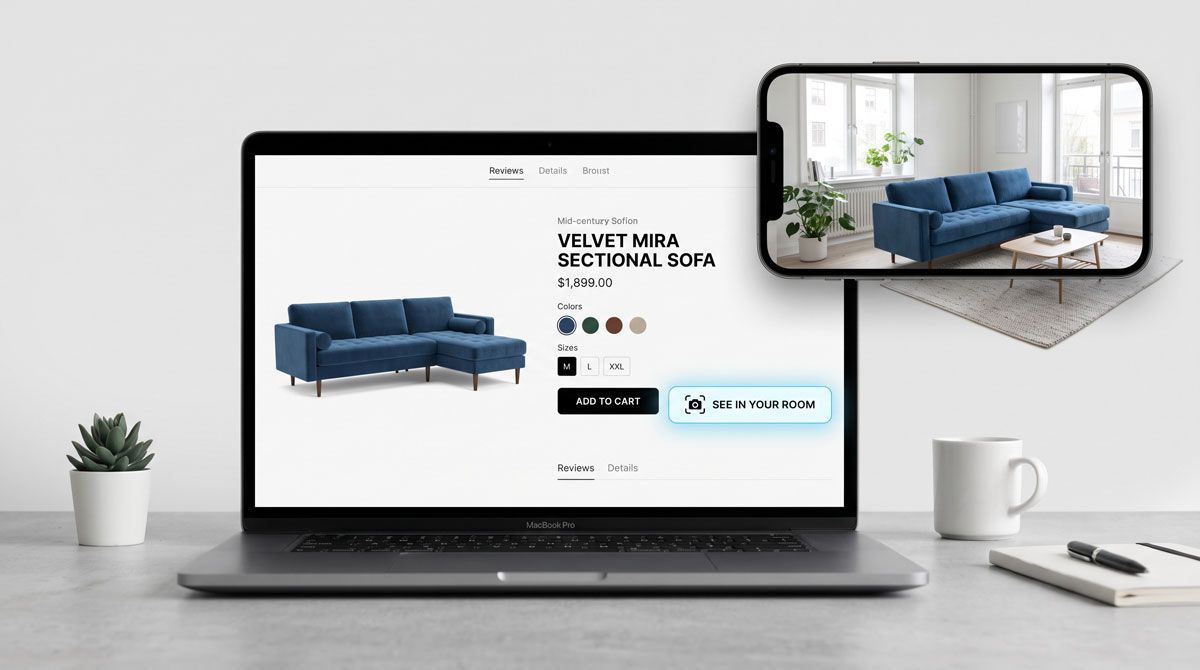
Furniture shoppers hesitate at the product page. They like the piece, they can see the dimensions, and the price is within budget. But they cannot picture it in their actual room. That hesitation is where a room preview button changes the outcome.
The purchase confidence gap
Furniture and home goods carry a cart abandonment rate of 79.1% - one of the highest in ecommerce. The primary driver is not price or shipping: it is uncertainty about how the piece will look in the shopper's actual room. A room preview button lets them resolve that question without leaving the product page.
What a Room Preview Button Does
A "See in Your Room" button triggers a simple two-upload flow. The shopper uploads a photo of their room and sees your specific product placed realistically into that space.
Shopper uploads their room photo
One photo from their phone or computer. The AI uses that photo as the base, preserving the real lighting, existing furniture, flooring, and wall colors.
Your product image is used directly
The tool uses your existing product photography. No 3D models are needed. The product photo already on your site is sufficient for generating the preview.
AI generates a realistic preview
The AI removes the furniture in the target area, places your product with matched lighting and correct perspective, and returns a photorealistic image.
Shopper decides with certainty
Instead of guessing, the shopper sees your product in their actual room. That confidence drives purchase decisions.
Why Product Page Placement Matters
The room preview needs to be on the product page, not on a separate landing page. Placement directly beside the Add to Cart button positions it at exactly the moment the shopper is deciding.
At the decision point, not before it
Shoppers use room visualization when they are actively deciding whether to buy a specific item. That moment is the product page.
The product context is already established
On the product page, the shopper already knows the price, dimensions, and color options. The room preview resolves the one remaining question: will this look right in my room?
It does not replace the product image gallery
The room preview button is an addition to your existing gallery. Shoppers who do not want to use it ignore the button.
How It Works Technically
The setup requires no 3D models, no new photography, and no change to how your catalog is managed.
The button is added to your product page template
For Shopify, it installs as an app. For other platforms, a lightweight embed code is added to the product page template once. It applies to all eligible products automatically.
Your product images are used as-is
The visualization uses your existing product photography. There is no separate asset upload, no photography brief, and no 3D model commissioning.
Shoppers experience a two-upload flow
The shopper clicks the button, uploads their room photo, and receives a realistic preview showing your product placed in their room. The flow takes under a minute and requires no app download.
The preview is browser-based
No app download is required. The entire flow works in the browser, on desktop and mobile, without any installation step.
Platform Compatibility
Shopify
Installs as a Shopify app. The button appears on product pages without theme code edits. Compatible with most Shopify themes.
WooCommerce
Embed code is added to the WooCommerce product page template once. Works with standard WooCommerce and most premium themes.
Custom platforms
A JavaScript embed can be placed in any product page template. Implementation typically requires one developer and takes less than a day.
Headless commerce
An API integration is available for headless implementations. Contact us for technical documentation.
How to Get It Live
Review the Storefront product page
Start by understanding what the integration delivers. The DecorViz Storefront page covers button placement, shopper flow, customization options, and pricing.
Choose your product categories
Decide which categories should show the room preview button. Sofas, rugs, beds, and dining tables typically see the highest engagement. You can start with one category and expand.
Install or embed
For Shopify: install the app and configure which collections to enable. For other platforms: paste the embed code into your product page template and set the active category rules.
Test on a small set of products first
Enable the button on 5 to 10 products before rolling out to your full catalog. Review how shoppers interact with it and confirm the product images are generating good previews.
Add room visualization to your product pages
No 3D models needed. Works with your existing product photography.
What Retailers Typically See
Higher add-to-cart and conversion rates
Shoppers who use the room preview have resolved the primary uncertainty before leaving the product page. Furniture retailer DFS reported a 112% conversion lift after adding sofa visualization. When shoppers can see the product in their space, the main barrier to checkout is removed.
Longer time-on-page and same-session converts
Browsers who were not planning to buy sometimes use the room preview, see a result they did not expect, and convert in the same session. Visualization turns passive browsers into active buyers.
Reduction in returns from "looked different" reasons
The online furniture return rate averages 22.7%, and size or color mismatch is the largest single cause. Processing a bulky return costs an estimated $55–$108 per item - often wiping out the full profit margin of the sale. Shoppers who preview before buying are far less likely to experience that disappointment.
FAQ
How do I add a "See in Your Room" button to my product pages?
DecorViz Storefront adds a "See in Your Room" button directly to your existing product pages. For Shopify stores, it installs as an app. For custom platforms, a lightweight embed code is pasted into your product page template. No 3D models, no photography studio, and no developer team are required.
Does this work with Shopify?
Yes. DecorViz Storefront is compatible with Shopify and can be installed without modifying your theme code. The button appears on product pages automatically for the categories you choose to enable.
Do I need 3D models to offer room visualization?
No. DecorViz works from your existing product photography. Shoppers upload a photo of their own room and the AI uses your product image to generate a realistic preview. No 3D model commissioning is required.
Will this reduce furniture returns?
Shoppers who preview furniture in their actual room before buying have significantly higher confidence. This directly reduces "looked different than expected" returns. For more, see our guide on how furniture stores can reduce returns.
Can shoppers use this from their phone?
Yes. The room preview flow is fully browser-based and mobile-compatible. No app download is required. Shoppers can upload their room photo directly from their camera roll and receive the preview in the same browser session.
For the business case behind room visualization, read ecommerce product visualization for furniture retailers. To understand the return reduction angle, see how furniture stores can reduce returns.