
Overview
DecorViz AI helps you see how furniture and decor will look in your actual room. Add a photo of your room and a photo of the product you are considering, and DecorViz generates a realistic preview showing the product placed inside your room.
There are two ways to make a preview. Quick Generate takes one room photo and one product photo and does the rest. Canvas lets you place up to 4 products in one room yourself, then turns the whole layout into a realistic photo.
You can try a free preview without creating an account. When you are ready for more, sign up and get free credits to start.
Finding Your Way Around
Open the DecorViz app. The menu on the left lists every page. On a phone, the same pages are in the bar at the bottom of the screen.
| Page | What it is for |
|---|---|
| Quick Generate | One room photo and one product photo, then Generate. The page DecorViz opens on. |
| Canvas | Place up to 4 products in a room exactly where you want them, then generate the whole scene. |
| Projects | Canvas scenes you saved, ready to open, change and generate again. |
| Results | Every image you have made, newest first. |
| Collections | Your own groups of images, for example one per room or per client. |
| Favorites | The images you marked with a heart. |
Your credits are shown at the top right. Next to them, the account menu opens your profile and your plan and billing.
Quick Generate
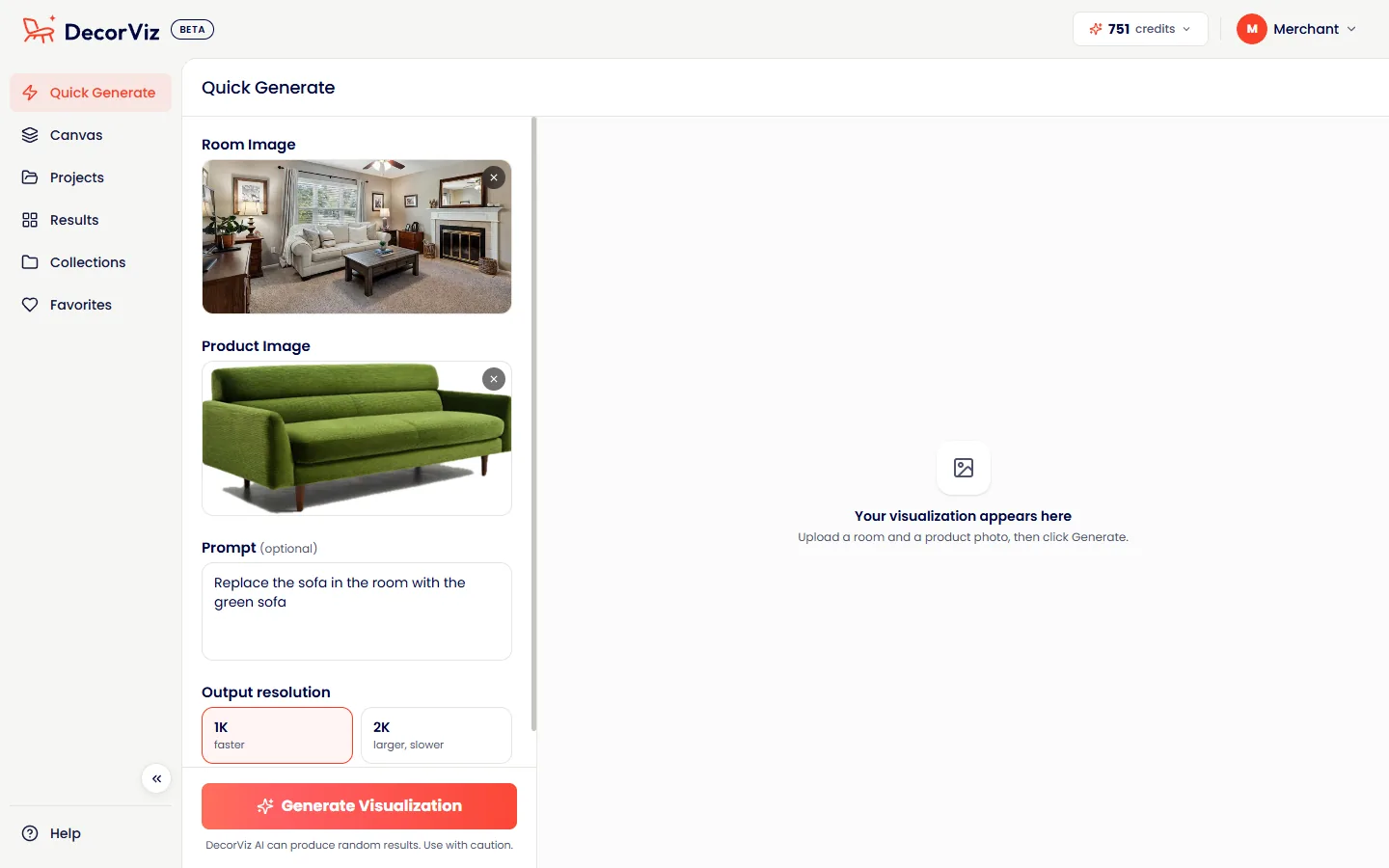
Quick Generate is the fastest way to see one product in your room. The whole process takes under a minute:
Step 1: Add Your Room Photo
Under Room Image, click or drag in a photo of the room where you want to place the furniture.
Take or choose a room photo
Use your phone or any camera to photograph the room. Aim for a photo that shows the area where you want the product placed, with some surrounding context like nearby walls, floor, and existing furniture.
You can drag and drop images straight onto the upload area, or click to browse your files. Photos from your phone camera work great, and large photos are resized automatically.
Step 2: Add Your Product Photo
Under Product Image, add a photo of the furniture you want to see in your room. This can be a photo you saved from a retailer's website, a screenshot from an online store, or a photo you took yourself.
Choose a clear product image
The best product photos show the entire item with good lighting. Photos from online stores usually work well. Avoid heavily cropped images or images that only show part of the product.
Step 3: Add a Prompt (Optional)
The Prompt field is optional but can help the AI place the product more accurately. Use it to describe where you want the product placed or to give extra context about the product.
Describe the placement
Write a short, natural description. For example: "Place the sofa against the back wall" or "Put the rug under the coffee table." Keep it simple and specific.
Example prompts
A prompt is especially useful when the room has multiple possible placement spots, when the product could go on the floor or a wall, or when you want to describe the product in more detail (for example, "a velvet accent chair with gold legs").
Step 4: Choose 1K or 2K
Under Output resolution, pick the size of the finished image.
1K or 2K
1K is faster. 2K makes a larger image and takes a little longer. The realism is the same, and both use one credit. 2K comes with paid plans and one-time packs.
Step 5: Generate Your Preview
Click "Generate Visualization"
Once your room photo and product photo are in place, click Generate Visualization. The AI creates your preview in about 30 seconds. It appears next to your photos and is saved in Results.
Each generation uses one credit. If you are not happy with the result, you can adjust your photos or prompt and try again.
It is completely normal to try multiple versions. Keep the same room photo and swap out different products to compare, or adjust your prompt for better placement. Iteration is part of the process.
Canvas
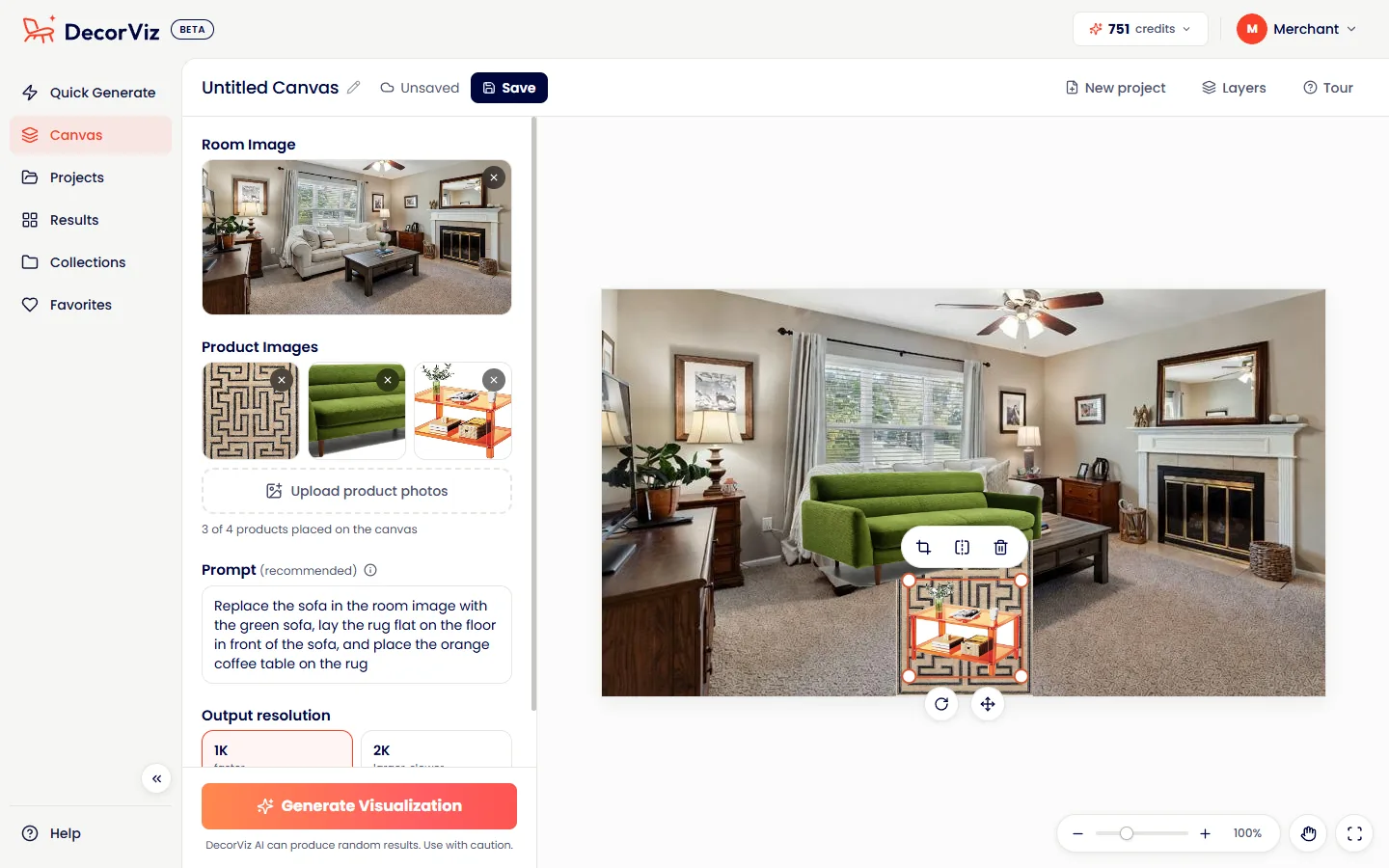
Canvas is for whole scenes. Instead of one product at a time, you place up to 4 products in the room yourself, exactly where you want them. Then Generate turns the layout into a realistic photo of the room. The first time you open Canvas, a short tour shows you around, and Tour replays it any time.
Build the Scene
Add a room photo
Upload a photo of the room, then drag it onto the canvas, or click it, to set it as the background.
Add product photos
Upload the products you want to see in the room. Click one to place it, or drag it to the spot you want. Up to 4 can be on the canvas at once.
Arrange each product
Click a product on the canvas to move, resize, rotate, crop, flip or delete it. Pull a corner to make it bigger or smaller, and drag the curved-arrow handle to turn it.
When products overlap, open Layers to choose which one sits in front. The eye hides a product while you work, and hidden products are left out of the result.
Prompt and Generate
In Canvas the prompt is recommended. Write one prompt that describes how all the products should sit in the room, not one line per product. For example:
Choose 1K or 2K as in Quick Generate, then click Generate when the scene looks right.
Save as a Project
Give your scene a name at the top of Canvas and click Save. It appears in Projects, where you can open it any time to move products, add or remove them, and generate again. New project starts a fresh canvas, and if you have unsaved changes, DecorViz offers to save them first.
Use Quick Generate to check one product fast. Use Canvas when you are planning a whole corner or room, or when you want to control exactly where each product goes.
Tips for Best Results
The quality of your preview depends heavily on the photos you upload. Here are practical tips to get the most realistic results.
Room Photo Tips
Your room photo gives the AI context about your space: the walls, floor, lighting, and existing furniture. A good room photo leads to a more natural-looking result.
Do
- Use natural lighting when possible
- Show the floor and walls where the product will go
- Include nearby existing furniture for context
- Take the photo from a natural standing angle
- Use a landscape orientation for wider rooms
Avoid
- Very dark rooms with no visible detail
- Extreme wide-angle or fisheye lens photos
- Close-up shots that cut off the floor or walls
- Blurry or motion-blurred images
- Heavily filtered or edited photos
Stand at the opposite side of the room from where you want the product placed. Capture the full wall and floor area. Think of it like a real estate listing photo of that corner or wall.
Product Photo Tips
The product photo tells the AI what the furniture looks like. The more context the photo provides, the better the AI can integrate it into your room.
Do
- Use a photo where the entire product is visible
- Choose images with some perspective (slight angle)
- Use well-lit product photos
- Product photos from retailer websites usually work well
- Include some background or floor for context
Avoid
- Heavily cropped photos that cut off legs or edges
- Pure white background cutouts with no context
- Flat, straight-on photos paired with angled room shots
- Collages or multiple products in one image
- Very small or low-resolution images
A product photo taken at a slight angle gives the AI more depth information. This helps it blend the product into your room more naturally. Flat, head-on product shots combined with angled room shots can sometimes produce less convincing results.
Prompt Tips
The prompt is your way to guide the AI. It is optional in Quick Generate and recommended in Canvas, and a good prompt can noticeably improve placement accuracy.
| Prompt Type | Example | When to Use |
|---|---|---|
| Placement | "Place it against the right wall" | Room has multiple possible spots |
| Description | "A navy blue velvet sofa with wooden legs" | Product colors are hard to tell from the photo |
| Combination | "Place this round oak dining table in the center of the room" | You want both description and placement |
| Whole scene | One prompt that says where every product goes | Canvas, with several products in the room |
Short, clear prompts work best. You do not need to write a paragraph. A sentence or two about the products and where they should go is all the AI needs.
Your Images
Every image you make is saved in Results, newest first. You can search, switch between grid, masonry and list views, and select several images at once to download them or add them to a collection.
View full size
Click any image to open it full size and look at the details up close.
Download
Download any image to your device and share it with family, friends or a client before buying.
Favorites
Click the heart on an image to keep it in Favorites, so your best results are always one click away.
Collections
Create a collection in Collections, for example one per room or per client, and add images to it. An image stays in Results when you add it to a collection.
Delete
Delete any image you no longer need. Deleting cannot be undone.
Generate previews of different products in the same room, then add them to one collection to compare them together. It is a great way to narrow down your choices before you buy.
Understanding Credits
Each generated image uses one credit, at 1K or 2K, in Quick Generate or Canvas. Your remaining credits are shown at the top right of the app. Click them to see the details, or open Plan & billing from the account menu.
| Credit Type | How You Get Them | Details |
|---|---|---|
| Subscription Credits | Monthly plan | Refresh each billing cycle. Used first. |
| One-Time Credits | Buy a credit pack | Do not expire. Used after subscription credits. |
| Bonus Credits | Welcome credits and promotions | Free credits. Used last. |
When you generate a preview, the system uses credits in this order: Subscription first, then One-Time, then Bonus.
When you run out of credits, DecorViz shows you the options: a monthly plan or a one-time credit pack. Visit the Pricing page to see all available plans.
Troubleshooting
If your preview does not look quite right, here are common issues and how to fix them.
Product looks "pasted on" instead of natural
This usually happens when the product photo is a flat cutout on a pure white background. Try using a product photo that includes some floor, shadow, or background context. Adding a prompt that describes the product also helps.
Product placed in the wrong spot
If the room has multiple open areas, the AI might pick a different spot than you intended. Add a prompt that specifies placement, for example: "Place the rug under the coffee table." For full control, place the product yourself in Canvas.
Preview looks too dark or too bright
The AI tries to match the lighting in your room photo. If your room photo is very dark or has strong backlighting, the preview may reflect that. Try retaking the room photo with more balanced lighting, ideally during daylight.
Product proportions look off
This can happen when the product photo has a very different perspective angle than the room photo. Try a product image taken from a similar angle. In Canvas, you can also resize the product yourself.
Generation failed or stuck loading
Occasionally a generation may fail due to server load. If this happens, your credit is refunded automatically. Simply try again. If a generation takes longer than usual, it still appears in Results when it is ready.
Frequently Asked Questions
What types of furniture can I visualize?
DecorViz works with sofas, rugs, beds, dining tables, coffee tables, TV stands, accent chairs, lamps, shelves, and more. Any furniture or decor product that you have a photo of can be visualized in your room.
Should I use Quick Generate or Canvas?
Use Quick Generate to see one product in a room in a few clicks. Use Canvas when you want to place up to 4 products in one room, choose exactly where each one goes, and save the scene as a project to change later.
How long does it take to generate a preview?
Each preview takes about 30 seconds at 1K. 2K takes a little longer. You will see a loading indicator while the AI creates your visualization.
Can I try different products in the same room?
Yes. Keep your room photo and swap out the product photo as many times as you want. Each generation uses one credit.
What if my generation looks wrong?
Try adjusting your prompt, using a clearer product photo, or retaking your room photo with better lighting. Most issues come from input image quality. If a generation fails, your credit is refunded automatically.
Are my room photos private?
Yes. Your room photos and generated previews are private to your account. They are not shared with anyone, including furniture retailers who use DecorViz Storefront on their websites.
Can I use DecorViz on my phone?
Yes. DecorViz works in your mobile browser, Canvas included. You can take a photo of your room and upload it directly. There is also an Android app.
Does DecorViz guarantee the product will look exactly like the preview?
DecorViz generates realistic visual previews to help you make more informed decisions. Previews are designed to be believable and helpful, but lighting conditions, screen colors, and other factors mean the real-world result may vary slightly.
What image formats are supported?
JPG, PNG, and WebP photos work, including photos taken directly with your phone camera. Large photos are resized automatically.
For installation on a merchant website, use the Storefront integration guide or the Squarespace setup guide.
Ready to try it?
Upload a room photo and see how your next piece of furniture looks before you buy.