
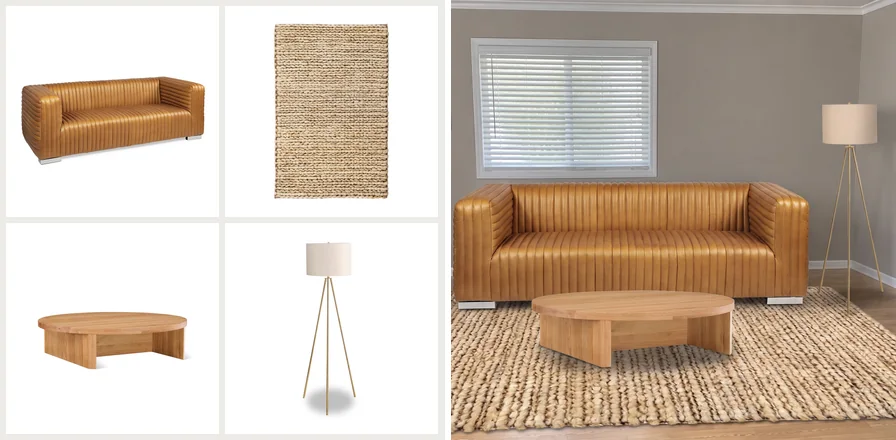
 Four listings, one room
The best way to see multiple furniture pieces together is to place all of them in one photo of your own room. DecorViz Canvas does exactly that. You upload a room photo, add product photos from any store, put each piece where you want it, and DecorViz generates one realistic image of the whole scene.
Because DecorViz Canvas works from product photos, not a store catalog, the sofa, the rug and the lamp do not have to come from the same retailer.
Key points
- Furniture mistakes often come from the combination, not from one bad product.
- Mood boards and one-product previews still leave the combination to your imagination.
- DecorViz Canvas shows every piece you are considering in one photo of your room.
- You choose where each piece goes, and an old sofa can be replaced instead of left in the shot.
- Products can come from any store, a marketplace or a small independent shop.
Why furniture that looks right alone can clash together
Every product page shows its piece alone, on a clean backdrop or in a room styled to flatter it. Your room will hold several pieces at once, next to the ones you are keeping.
Colors and patterns compete
A green sofa and a red patterned rug can each be lovely. Side by side, one of them usually loses.
Wood tones that almost match
An oak coffee table beside a walnut sideboard rarely reads as a choice. It reads as a near miss.
Styles pull in different directions
A curved boucle chair and a square industrial table can look like two rooms sharing one floor.
No listing shows the other pieces
Each photo tells you whether that one product is nice. None of them tells you whether your shortlist works as a room.
A room is judged as a set, so preview it as a set
DecorViz Canvas puts every piece you are considering into one photo of your room, each in its own color, material and finish from the listing photo.
Ways to see furniture together before you buy, compared
Shoppers use five common methods. Only one puts real products from different stores into a photo of your actual room, all at once.
Mood boards are good for shortlisting a look. AR is handy for a quick look through your camera. Neither shows real products from several stores in a photo of your room, and that is the job DecorViz Canvas does.
| Method | What you see | Your own room? | Products from any store? | All pieces in one image? |
|---|---|---|---|---|
| Mood board or Pinterest board | Photos side by side on a blank board | No | Yes | Side by side, not in a room |
| AR furniture app | 3D models over your camera view, old furniture still in the shot | Yes, through the camera | Only the app's own catalog | Depends on the app |
| 3D room planner | A rebuilt 3D model of your room | A model of it, not a photo | Usually the planner's own catalog | Yes |
| AI preview, one product at a time | One real product in your room photo | Yes | Depends on the tool | No, one piece per image |
| DecorViz Canvas | Every piece you choose, in one realistic photo of your room | Yes, your own photo | Yes, any store, marketplace or shop | Yes |
Is your shortlist spread across several stores?
Add a photo of your room and the product photos you saved. See the whole set together before you order any of it.
How to see multiple furniture pieces together in your room
Everything happens in the DecorViz web app, in your browser. Open Canvas from the app menu, then follow five steps.
Upload a photo of your room
It becomes the background of the canvas. A clear, well-lit photo taken from where you normally stand works best.
Add the product photos from any store
Use the listing photos as they are, or screenshots. Click a product to place it, or drag it to the spot you want.
Put each piece where you want it
Move, resize, rotate, crop or flip each product. When pieces overlap, Layers decides which one sits in front.
Add a prompt only if you need one
Most scenes need none. Use a few words to keep something in the room, such as the TV unit.
Generate, then save, compare and swap
DecorViz returns one realistic photo of your room with every piece in it. Save the layout as a project, swap one piece and generate again to compare.
Your layout does the work, so most scenes need no prompt
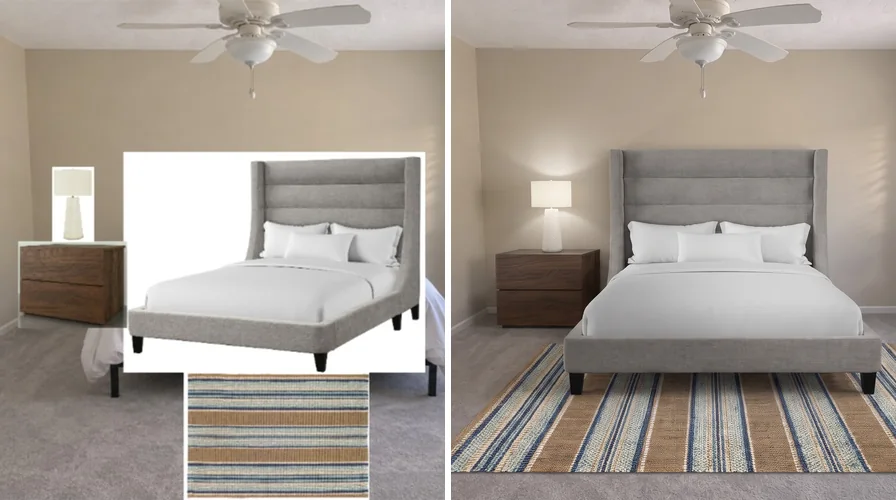
Place a new piece over an old one and DecorViz replaces it. The bedroom below was generated with an empty prompt box. Add a few words only to keep something, for example "keep the TV and TV unit".
 One bedroom, from layout to finished photo
Placed on DecorViz Canvas
The generated photo
The old bed is replaced, the new pieces sit where they were placed, and the walls, window and light stay as they are.
How to mix and match furniture from different stores in one room
Retailer tools can only show their own catalog. Your shortlist rarely lives in one catalog.
DecorViz Canvas works from product photos instead. If you can save the listing photo or take a screenshot of it, the piece can go into your scene.
Big retailers and small shops alike
A sofa from a large chain and a lamp from an independent maker go into the scene the same way.
Screenshots work too
No way to save the listing photo? A screenshot of it is enough. Crop it on the canvas if it shows more than the product.
Which furniture combinations to check together before you buy
Some pieces are almost always bought as a group. These are the combinations worth seeing in one scene with DecorViz Canvas.
Living room
Sofa, rug, coffee table and a floor lamp. The rug often decides whether the sofa color works.
Bedroom
Bed, nightstands, rug and lamps. The headboard fabric sets the tone for everything around it.
Dining area
Table, chairs and a pendant light. A chair wood that fights the table wood shows up at once in a photo.
Home office
Desk, chair and a shelf. Easy to buy separately, and easy to end up with three styles.
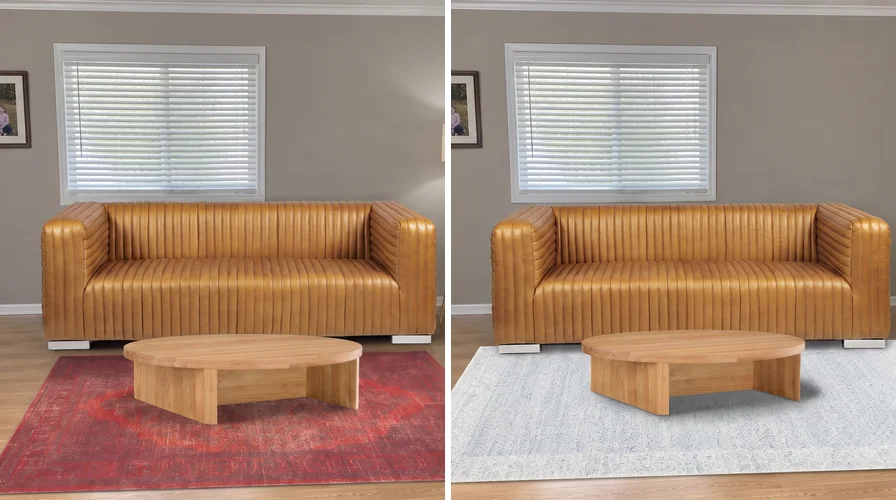 Same room, same sofa, only the rug changes
Red rug
Light blue rug
Keep the layout, swap one piece and generate again. With both versions side by side, the choice is much easier to make.
Frequently Asked Questions
What is the best way to see multiple furniture pieces together in my room?
Place them all in one photo of your room with DecorViz Canvas. Upload a room photo, add product photos from any store, put each piece where you want it and click Generate.
DecorViz generates one realistic image of your room with every piece in it.
Can I mix furniture from different stores in one preview?
Yes. DecorViz Canvas works from product photos, not from a store catalog. A sofa from a large retailer, a rug from a marketplace and a lamp from a small independent shop can share one scene.
Can DecorViz Canvas replace furniture that is already in my room photo?
Yes. Place the new piece over the old one on the canvas. DecorViz takes the old piece out and puts the new one in its place, while the pieces you are keeping stay where they are.
Do I need to edit the product photos first?
No. Upload the product photos as they are, straight from the store listing or as a screenshot. If a photo shows more than the product you want, crop it on the canvas.
Can I save a scene and swap one piece later?
Yes. Save the DecorViz Canvas layout as a project, open it from Projects any time, swap a piece and generate again.
Every image is kept in Results, so you can compare versions of the same room side by side.
How is this different from previewing one product at a time?
Quick Generate in DecorViz previews one product and places it for you. DecorViz Canvas previews several products together, and you choose where each one goes.
Use Canvas when the question is whether the pieces work together.
See your shortlist as one room
Upload one room photo and the products you are weighing up, from any store. DecorViz Canvas shows them together before you buy.
Checking a single piece? Read how to place furniture in a room using AI. For the short answer on matching, see how to avoid buying furniture that doesn't match. Every Canvas control is in the DecorViz Canvas guide.