
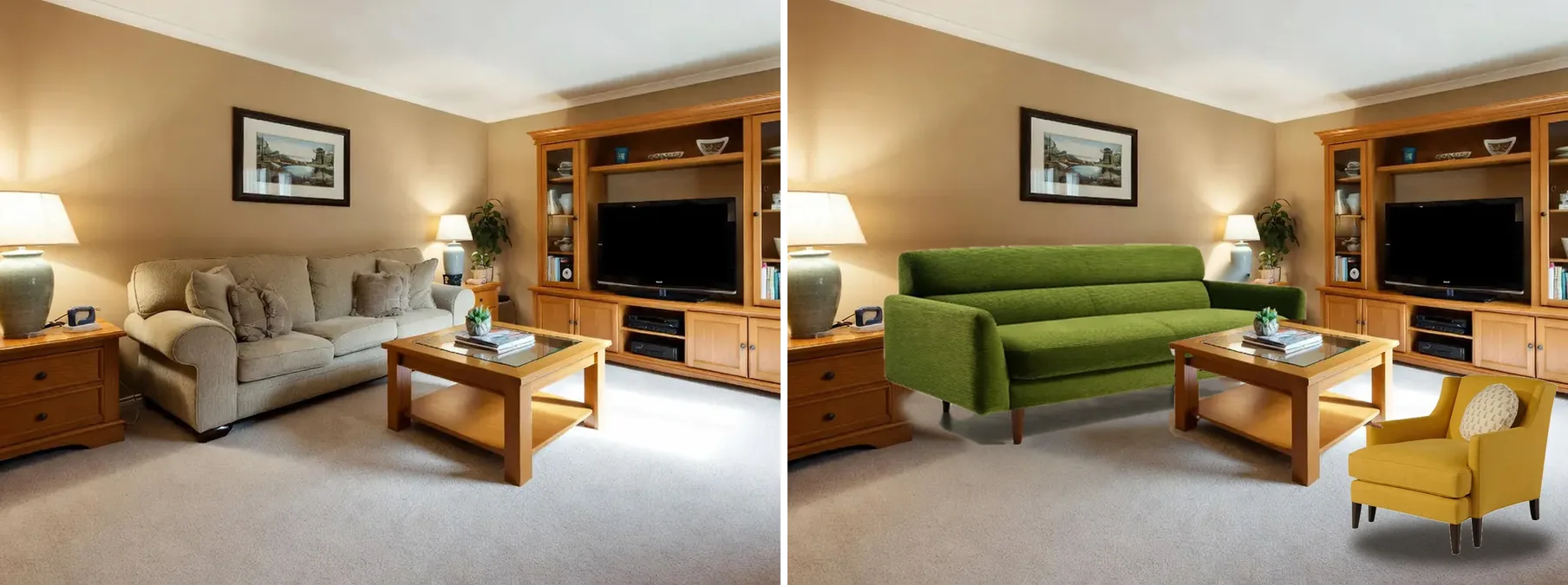
 One room, two new pieces, one preview
DecorViz Canvas lets you place several furniture and decor products in one photo of your room, choose exactly where each one goes, and generate one realistic photo of the room with all of them in it. It arrived with the new DecorViz app in October 2026, and it is open to every DecorViz account.
Until now, DecorViz showed one product at a time. That answers "will this sofa look right in my room?" very well. Canvas answers the bigger question most people are really asking when they furnish a room: will these pieces look right together, in my room?
DecorViz Canvas shows the whole room you are planning, not one product at a time.
Each piece keeps its own color, material and finish, because the preview is built from the real product photos you add.
Furniture that looks right alone can clash together
Most furniture mistakes are not about one product. They come from combinations: a green sofa that fights a red rug, two wood tones that almost match, an armchair that crowds the coffee table. Each listing photo looks great on its own white background. None of them show you the other pieces.
One product at a time
You see the sofa in your room. Then the rug, in a separate preview. Then the chair. You still have to imagine all three together.
The whole scene with DecorViz Canvas
The sofa, the rug and the chair appear in the same photo of your room, in the places you chose. Nothing is left to imagine.
And because DecorViz Canvas works from product photos, the pieces do not have to come from the same store. A sofa from a big retailer, a rug from a marketplace and a lamp from a small independent shop can share one scene.
How DecorViz Canvas works, in four steps
You build the scene yourself, then DecorViz turns your layout into one realistic photo of your room.
Add a photo of your room
Upload a photo of the room and set it as the background of the canvas. A clear, well-lit photo taken from where you would normally stand works best.
Add the products you are considering
Upload the product photos as they are, from any store's listing or a screenshot. Click one to place it, or drag it to the spot you want.
Put each piece where you want it
Move, resize, rotate, crop or flip each product on the canvas. When products overlap, Layers lets you choose which one sits in front.
Generate the scene
Click Generate. DecorViz returns one realistic photo of your room with every product in it. Most scenes need no prompt.
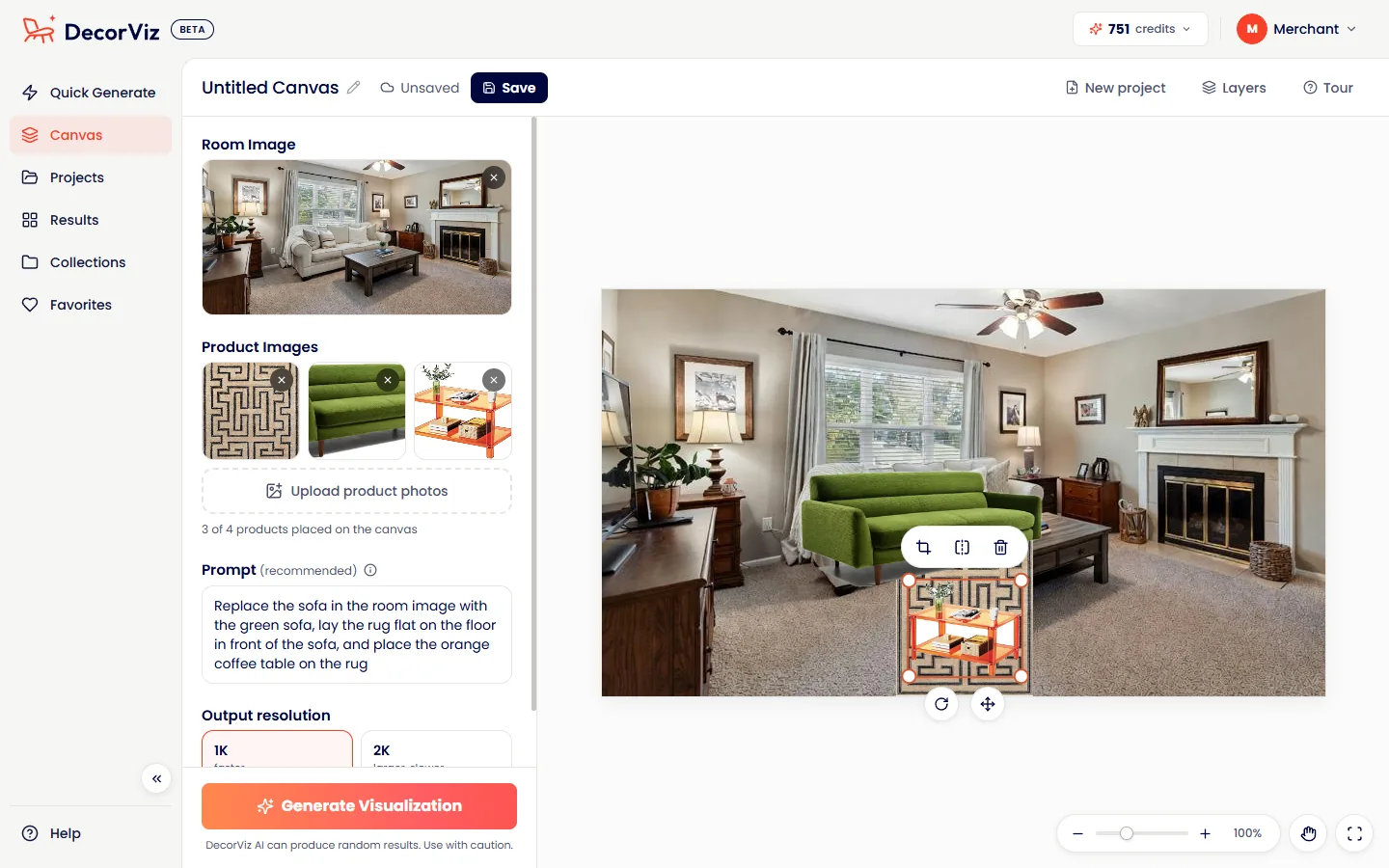
Your layout does the work, so most scenes need no prompt
Place a new piece over an old one and DecorViz replaces it. Use the prompt only for something you want kept, for example "keep the TV and TV unit".
Quick Generate is for one product, Canvas is for a whole scene
Both live in the same DecorViz app and use the same realistic preview. Pick the one that matches the question you are asking.
Quick Generate is still the first page you see when you open DecorViz, and it works exactly as before: add a room photo and a product photo, then click Generate. Open Canvas from the app menu when you want to see more than one piece at once.
DecorViz Canvas is for anyone planning more than one piece
Furnishing an empty room
Moving into a new home or a bare room? Add the sofa, rug, coffee table and chair you are weighing up, and see the finished room before the first box arrives.
Refreshing a furnished room
Replace the old sofa and add a new armchair in the same preview, while the pieces you are keeping stay exactly where they are.
Shopping across several stores
Your shortlist is spread over different retailers. DecorViz Canvas brings them into one scene, which no single store's tool can do.
Showing options to a client
Designers and home stagers can arrange two versions of a room in the client's own photo and compare them side by side.
Plan your room with DecorViz Canvas
Add your room photo and the products you like. See them together before you buy.
Save a scene as a project and change it later
Furnishing a room rarely happens in one sitting. Save any DecorViz Canvas layout as a project, open it from Projects whenever you like, swap a piece that sold out or that you changed your mind about, and generate again. Every image you make is kept in Results, so you can compare versions of the same room side by side.
Projects keep the layout
The room, the products and where each one sits are all saved together.
Results keep every image
Group the best ones into Collections and heart your favorites to find them fast.
The result is yours to share
Download the photo and send it to whoever else has a vote before anything is ordered.
DecorViz Canvas FAQ
What is DecorViz Canvas?
DecorViz Canvas is a way to see several furniture and decor products together in one photo of your room. You place each product where you want it, and DecorViz generates one realistic photo of the room with all of them in it.
How is DecorViz Canvas different from Quick Generate?
Quick Generate previews one product at a time and places it for you. DecorViz Canvas previews several products together, and you choose where each one goes before you generate.
Can I mix products from different stores in one DecorViz Canvas scene?
Yes. DecorViz Canvas works from product photos, not from a store catalog, so a sofa from one store, a rug from another and a chair from a small independent shop can sit in the same scene.
Do I need to prepare the product photos for DecorViz Canvas?
No. Upload the product photos as they are, straight from the store's listing or a screenshot. You can crop a photo on the canvas when it shows more than the product you want.
Can I save a DecorViz Canvas scene and change it later?
Yes. Save the layout as a project, open it from Projects any time, swap a piece and generate again.
Where can I use DecorViz Canvas?
DecorViz Canvas is in the DecorViz web app, in your browser. Open it from the Canvas page in the app menu. The Canvas guide walks through every tool.
Want one product at a time instead? Try the free furniture visualizer. For step-by-step help with every Canvas tool, read the DecorViz Canvas guide. More announcements are in DecorViz News.