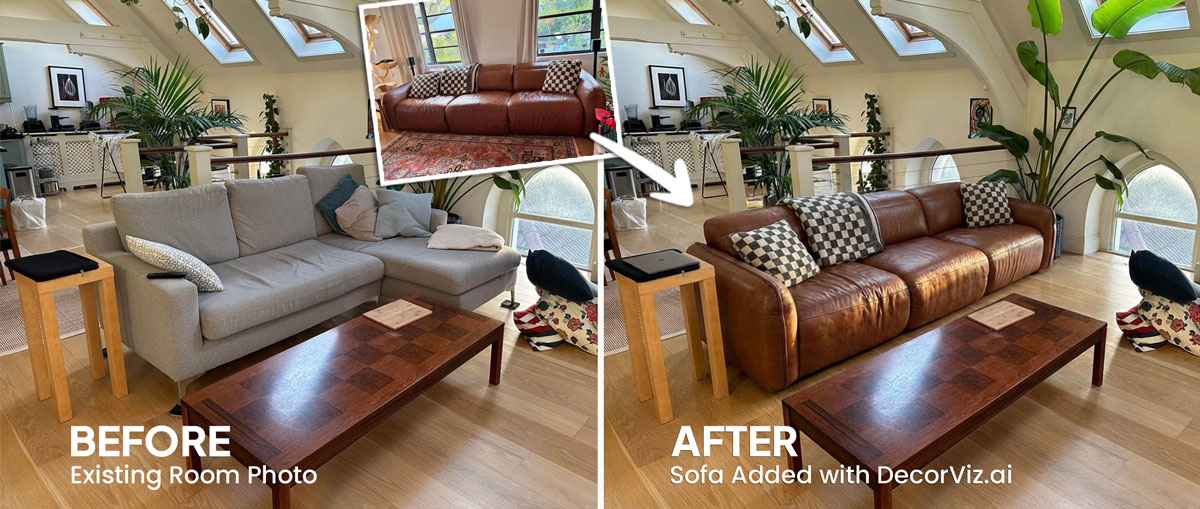
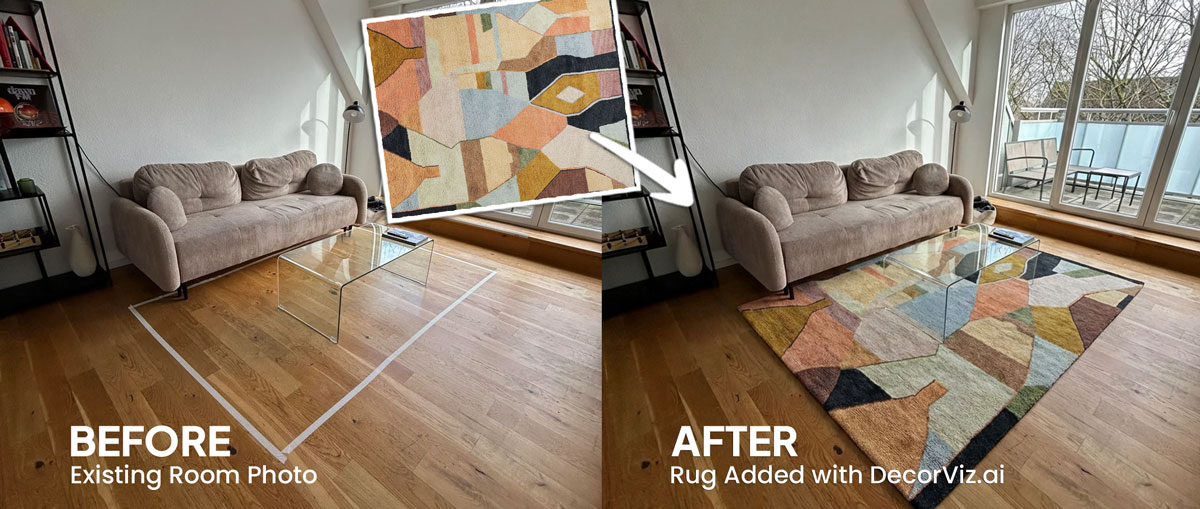
See the stand with the whole media wall
Judge the console beside your sofa, rug, and any furniture or decor already visible on the media wall.
Upload a photo of your living room and any TV stand or media console product image. Preview how it looks against the sofa, rug, flooring, and the wall it will sit against before you order.
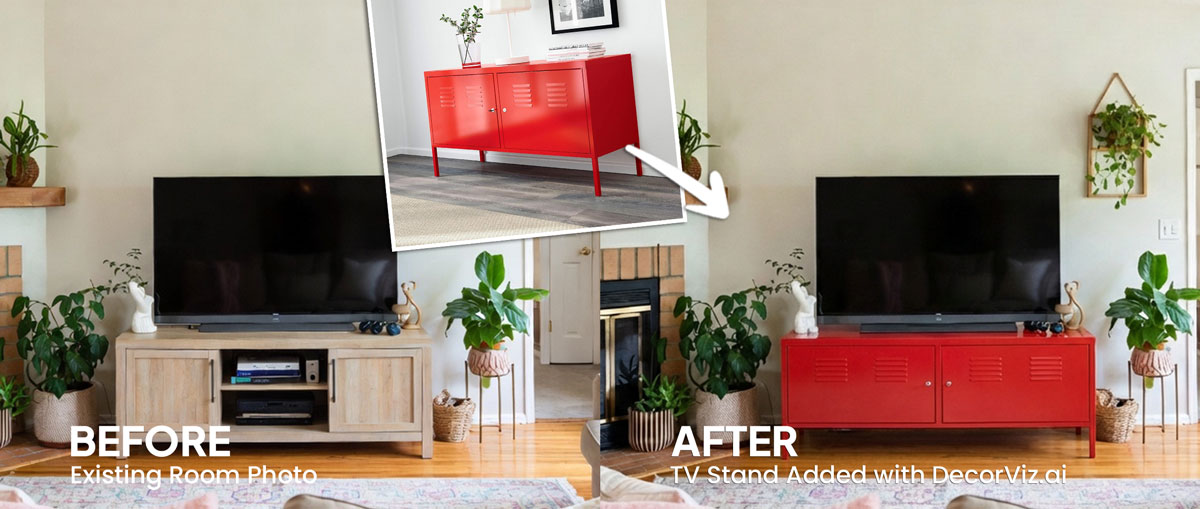
Use the same living room photo to preview a media console, replace the current TV stand, or compare products from different stores.
A living room TV stand visualizer places a specific media console or TV stand product into your actual living room photo. Instead of judging the piece against a staged showroom, you can review it with your walls, flooring, sofa, rug, and the furniture that will remain in the room.
DecorViz works from a room photo and a product image. It does not require an AR room scan, a 3D model, or a retailer-specific catalog.
This page focuses on TV stand and media console visualization in a living room, judged alongside the sofa, rug, and wall it sits against. For the general TV stand guide covering any room type, visit the Complete TV Stand Visualizer.
The TV stand anchors the media wall and affects how the whole living room reads. Previewing the actual product helps you evaluate the full wall, not the console in isolation.
Judge the console beside your sofa, rug, and any furniture or decor already visible on the media wall.
A walnut console reads differently against your walls and flooring than a dark-stained or painted unit. Preview the exact product in the room context.
Keep the old stand visible in the room photo and upload the product image of the replacement to preview the change before committing.
Living room TV stand decisions usually involve replacing an existing console, furnishing a new media wall, or comparing shortlisted products.
Use a photo with the existing console visible and upload the new product image to preview the replacement against your sofa and rug.
"I want to see a walnut console where my black TV stand is now."
Start with an empty or recently cleared wall and compare how different console widths and profiles establish the space.
"We just moved in. I want to see whether a wide sideboard or a narrow console works better."
Use the same living room photo with each shortlisted product so every option is judged from the same viewpoint.
"Which of these consoles works better with my sofa color and flooring?"
A TV stand or media console is one of the most visible pieces on the main wall of a living room. Anyone replacing or selecting one uses a visualizer to reduce uncertainty before committing.
You have a specific media wall, a sofa already placed opposite it, and a budget that makes returning the wrong console expensive. You want to see the product with your actual walls, flooring, and sofa before ordering.
You are specifying a TV stand for a client's living room and need to show how the actual product relates to the sofa, rug, and surrounding furniture before placing an order.
The media wall is often prominent in listing photography. You need to confirm the product's style and finish work with the room before sourcing the piece.
Use the generated view as a visual decision aid, then confirm the retailer's dimensions and product details before ordering.
Check whether the console feels balanced with the sofa length, the wall width, and the surrounding furniture.
Compare the console's wood tone, paint color, or metal finish with the room's existing flooring, walls, and sofa.
See how the console's height and visual weight read from the sofa's seated eye level and across the room.
Preview how the console interacts with the rug, curtains, and nearby furniture before committing.
Each approach answers a different question. Use the one that matches what you actually need to decide.
| Approach | Shows TV stand with your sofa, rug, and media wall | Works with any furniture retailer | Requires room scan or 3D model | Free to use |
|---|---|---|---|---|
| DecorViz (AI preview) | Yes, uses your actual room photo | Yes, any product image from any store | No, photo upload only | Free to start |
| AR apps (e.g. IKEA Place) | Yes, through phone camera | No, limited to the retailer's catalog | Usually uses camera tracking, a compatible device, and retailer-provided 3D product assets | Varies by app |
| Showroom visit | No, staged room not your room | Limited to that showroom's stock | No scan needed | No, travel and time cost |
| Product photo only | No, isolated background | Yes, any product page | No | Yes |
A showroom visit helps you assess build quality and drawer action. DecorViz helps you assess visual fit in your actual room. Use both when the purchase is significant.
Product photos isolate the console. These problems only become clear when the stand is considered with the surrounding room.
A wide TV stand can look proportional in a product photo but visually dominate a living room once it sits between the sofa and the walls.
Warm and cool wood tones become more noticeable when the console sits on your specific floor and faces your specific sofa upholstery.
A new console must work visually with the sofa, coffee table, accent chairs, and decor you are not replacing.
A console that sits too low or too high relative to the sofa can make the media wall feel unbalanced, an issue that is difficult to judge from a product page alone.
The console may look attractive in isolation while making the seating arrangement feel crowded or visually unbalanced.
Use DecorViz to make a better visual comparison, then verify the physical and product details before ordering.
Use the preview to narrow the visual decision. Use measurements and product details to confirm the purchase.
The same room photo becomes a consistent place to compare different TV stand choices.
Product photography helps you inspect the console, but it cannot show how the piece relates to your sofa, rug, and walls.
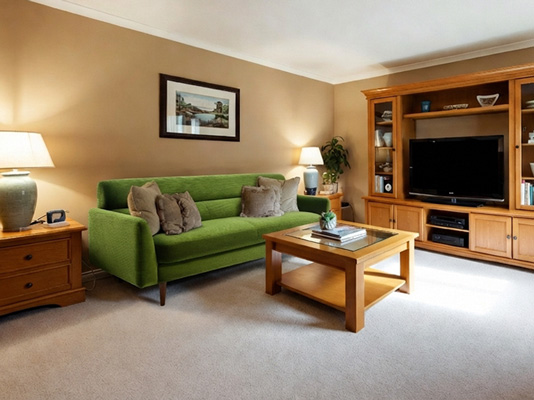
Use the real room photo to compare the stand with the sofa, flooring, and furniture already in the space.
Keep the room consistent while testing different console finishes, widths, or profiles.
Use DecorViz in a browser or the Android app. No AR room scan or 3D product model is required.

Use a photo showing the media wall, your existing TV stand if replacing, sofa, rug, and as much of the room arrangement as possible.
Upload a clear image of the media console or TV stand from any retailer.

See the stand on the media wall. Compare a different finish, width, or profile using the same room photo.
A TV stand decision often depends on the furniture around it. Preview the connected pieces separately when needed.
Preview any living room furniture piece from the same room photo.
Preview the sofa that sits opposite the media wall.
Test the rug that ties the seating area and media wall together.
"I was torn between two furniture options. Seeing them in my room with DecorViz made the decision obvious."
"The preview helped me check color and style with my floors and walls before ordering."
"I could show my partner a side-by-side view and we agreed in minutes."
Upload your living room photo. Add the TV stand product. Compare the result before ordering.
Try DecorViz - it is free to startWorks with media console images from almost any furniture store.
Yes. Use a living room photo that shows the media wall, sofa, and rug together. DecorViz places the selected TV stand in that context so you can judge how the product relates to the furniture already in the room.
Yes. Reuse the same living room photo with each product image. Comparing both from the same viewpoint helps you judge how the profile, height, and visual weight of each option relates to the sofa and surrounding furniture.
Yes. The preview places the product into your actual room photo, so the flooring tone, wall color, and sofa upholstery are all part of the result. Wood-tone finishes and painted units read differently depending on the room context.
Yes. Use a photo with the current TV stand visible, then upload the product image of the replacement. The preview shows the new console in the same position so you can judge the change before ordering.
The preview works from the product image you upload, which is the TV stand or media console. If the product photo includes a TV or media equipment, those elements may appear. For the clearest result, use a product image that shows the stand on its own.
Yes. Use a clear photo of the full media wall so the available width is visible in the photo. The preview will show how the stand's visual width relates to the wall and the sofa arrangement. Always confirm the product's listed dimensions against your measured wall before ordering.